Auction Mechanics
How to Read the Auction Command Center Console

The first time you open the Auction Command Center Console, there is a lot going on.
Player values. Budget limits. Roster needs. Auction inflation. Scarcity. Bidding threats. Role assignments. A giant green or red decision signal staring back at you.
That density is intentional. An auction draft can move from “interesting player” to “sold” in seconds, and the Console is designed to put the information needed for that decision in one place.
But that does not mean every field deserves equal attention.
The easiest way to understand the Console is to stop thinking of it as dozens of individual numbers. The top of the Console is really six jobs happening side by side:
Auction Inputs — what is happening in the auction right now.
Active Player — who the player is and how that player fits your strategy.
Inflation — what the room has been doing relative to expected prices.
Price Ladder — the progression from market value to your actual live bidding ceiling.
Live Decision — what ACC thinks you should do with all of that information.
Top Bidding Threats — who else can realistically stay in the fight.
Once you understand those six areas, the Console becomes much easier to scan.
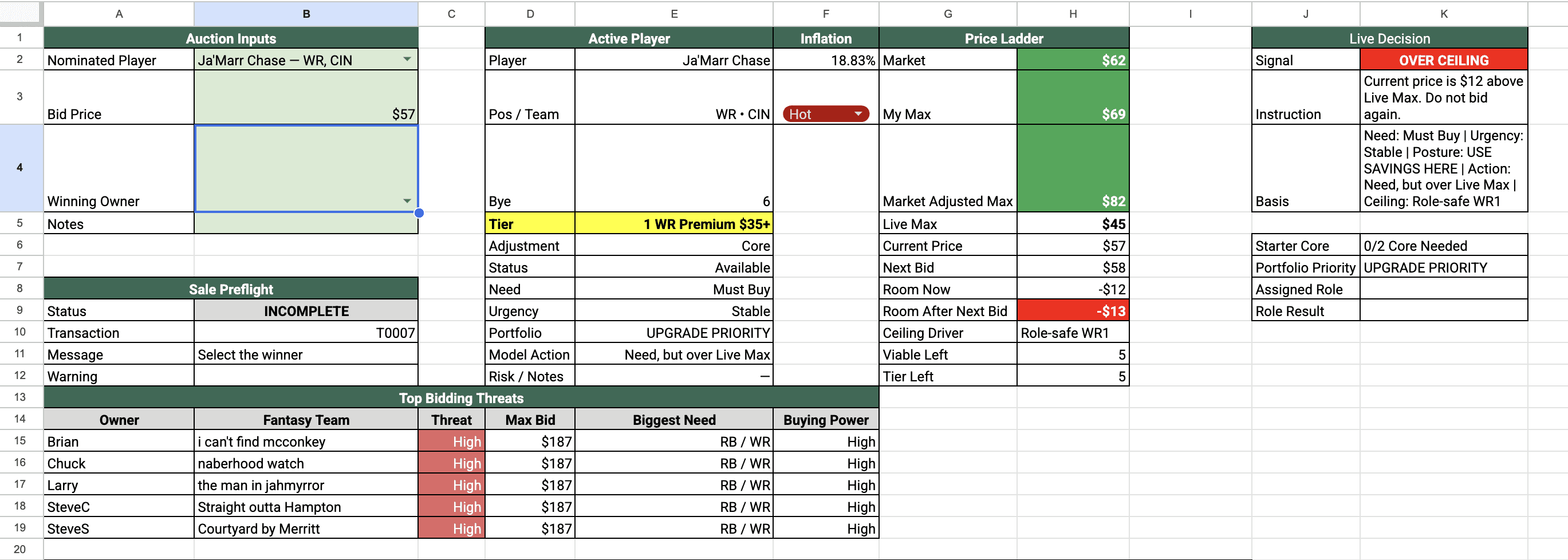
The four numbers people confuse most
Before going field by field, there is one distinction worth getting straight immediately:
Market, My Max, Market Adjusted Max and Live Max are not four versions of the same number.
They answer four different questions.
Field | The question it answers |
|---|---|
Market | What does the data I loaded into the Source tabs say this player is worth? |
My Max | Based on my player strategy inputs, what is this player worth to me before considering my current roster and budget? |
Market Adjusted Max | Based on the room's current inflation, what does My Max become? |
Live Max | What is the most my roster can safely support for this player right now? |
That last one is the number that matters most once bidding gets serious.
A player can have a Market value of $30, a My Max of $34, and still have a Live Max of $27.
That is not a contradiction. It means ACC thinks the player may be worth more in isolation, but your current roster construction no longer supports paying it.
More on that below.
1. Auction Inputs
The upper-left corner of the Console is the part you operate directly during the draft.
Nominated Player
Select the player currently being auctioned.
That selection drives nearly everything else on the page: player information, values, need, scarcity, Live Max, bidding threats and the final recommendation.
If the player is not available in the selector, stop and investigate rather than typing over a calculated field. The player may already be drafted, excluded from your board or missing from your imported player data.
Bid Price
Enter the current auction price.
You do not have to wait until the player is sold. During active bidding, updating the price gives ACC the information it needs to calculate the next bid and evaluate which opponents can still compete.
When the auction closes, make sure this field contains the actual final sale price before recording the transaction.
Winning Owner
Once the player is sold, select the actual winning owner.
This matters even when you did not buy the player. ACC uses every completed sale to update owner budgets, open roster spots, positional needs, buying power and the state of the auction room.
Notes
Optional transaction notes.
Most sales do not need one. This is better reserved for something you may actually want to remember later: reopened bidding, an unusual platform correction, a special league rule or another meaningful exception.
2. Sale Preflight
Directly below the auction inputs is the Console's transaction check.
Think of this as ACC asking:
“If you tell me to record this sale right now, does everything make sense?”
Status
Shows whether the current transaction is ready to be recorded.
A waiting or incomplete status means ACC still needs something from you or has detected a problem.
Transaction
The transaction number that will be used for the next recorded sale.
This becomes part of the permanent Auction Log and gives each transaction a stable identifier.
Message
The main preflight explanation.
If the transaction is not ready, start here. The message can point you toward a missing player, price, winner or another issue that needs to be resolved.
Warning
A strategic or transaction warning that deserves attention before committing the sale.
A transaction can sometimes be mechanically possible while still deserving another look. Don't treat the absence of an outright error as proof that every decision is a good one.
3. Active Player
The middle-left panel answers two questions:
Who is this player?
And:
How does this player fit my draft?
Player
The selected player's name.
It sounds obvious, but this is your first identity check. Auction rooms move fast. Make sure the Console is evaluating the same player currently on the block.
Pos / Team
The player's fantasy position and NFL team.
Position is especially important because roster need, role planning, scarcity and Live Max can all change depending on what you already own. Also, some players have very similar names. Make sure you're looking at the correct “Warren,” for instance.
Bye
The player's bye week.
Usually secondary during live bidding, but useful when your roster is beginning to concentrate around the same week.
Tier
The player's current valuation tier. This is calculated based on your inputs during setup.
Tiers become particularly useful when combined with Tier Left and Urgency. A player's individual value is only part of the decision; the number of comparable alternatives remaining matters too.
Adjustment
Your personal adjustment for the player.
This comes from the strategy you established before the draft and affects how ACC moves from Market to My Max.
An adjustment is your way of telling the model, in a structured way, that you are more or less interested in a player than the market consensus suggests.
Status
Whether the player is still available, already yours, drafted by someone else or excluded.
Need
How important this player's position is to your roster right now.
Common states can include:
Must Buy — you still have a required roster spot or strategically critical shortage.
Want One — minimum requirements may be covered, but preferred depth or starter quality is incomplete.
Optional — this position is not currently a priority.
Done — your configured needs at the position have been satisfied.
Need is dynamic.
Buying one running back can immediately change the Need displayed for every other running back on the board.
Urgency
Need asks, “How badly do I need this position?”
Urgency asks, “How quickly are my alternatives disappearing?”
Possible states include Stable, Tier Closing, Viable Pool Closing, Last Viable Option and No Viable Options.
That distinction matters.
You can have a strong Need while plenty of acceptable players remain. You can also have a moderate Need at the exact moment a useful tier is disappearing.
Portfolio
The broader bidding posture for this player within your remaining roster plan.
This is where ACC starts looking beyond the isolated player and asking whether this is a place to spend savings, pursue an upgrade, buy flex value, wait for a discount or redirect the budget elsewhere.
Model Action
The model's current action recommendation for the selected player.
Depending on the situation, that might amount to bidding toward a particular ceiling, waiting, monitoring, skipping or not bidding at all.
Use the action as a summary—not as a substitute for understanding why the model reached it.
Risk / Notes
Your own pre-draft strategy note for the player.
This is intentionally available on the Console so the observation you made three weeks ago doesn't disappear the moment an auction gets hectic.
4. Inflation
Pre-draft auction values are estimates.
Your draft room is reality.
The Inflation panel measures what has actually been happening in the room relative to the Market values ACC recorded when players were sold.
If players expected to cost $20 are consistently selling for $25, your league is giving you evidence that preseason prices may be too low for this particular room.
The displayed percentage summarizes that observed effect.
The status underneath it tells you how much confidence to place in the signal.
Early in a draft you may, for example, see an inflation percentage while the status still says Low Data. That is important. A few expensive sales can produce a dramatic-looking number without providing enough evidence to conclude that the entire room is permanently inflated.
As more valid sales are recorded, the room model gets more information.
The takeaway: watch inflation, but respect the data-status warning. ACC is designed to react to the auction—not overreact to the first three players sold.
5. The Price Ladder
This is the heart of the Console.
The Price Ladder takes you from a general player valuation all the way to the number that matters for your roster at this exact moment.
Market
ACC's baseline market estimate, based on your valuation inputs.
In the standard model, this is based on the active auction-value sources you imported, unless you have supplied a valid manual Market override.
Think:
“What do my imported valuation sources say this player is worth?”
It is a reference point, not a bid instruction.
My Max
Your static personal valuation of the player.
ACC begins with Market and applies your player strategy—or a manual My Max override when you've supplied one.
Think:
“Ignoring the current state of my roster for a moment, what is this player worth to me?”
Market Adjusted Max
My Max after ACC considers supported inflation from the actual draft room.
If your room is running hot, there are situations where refusing to pay a penny above preseason values is effectively the same as deciding not to buy anyone.
Market Adjusted Max gives the model a controlled way to recognize that reality without simply chasing whatever the room is doing.
Live Max
The central bidding ceiling in Auction Command Center.
Live Max considers the applicable valuation ceiling and the constraints created by your actual team.
Among other limits, ACC has to respect things such as:
Your remaining budget.
The minimum dollars required to finish the rest of the roster.
The amount your remaining role or position plan can safely allocate.
Any supported contextual premium created by genuine need or scarcity.
The lowest applicable limit wins.
That is why Live Max can be below My Max.
My Max tells you what the player is worth to you. Live Max tells you what your team can afford to do about it.
Current Price
The bid price currently entered in Auction Inputs.
Next Bid
The next bid you would have to make to continue.
This is one of the most useful fields on the page because auction decisions happen one increment at a time.
You generally don't need to ask, “Would I pay $37 for this player?” when the auction is sitting at $28.
You need to ask:
“Do I want to make the next bid?”
Room Now
A shorthand view of how the current price sits within ACC's live pricing context.
Use this as situational context rather than a replacement for Live Max.
Room After Next Bid
The same idea, projected one bid forward.
This helps expose the difference between a bid that is still comfortably supported and the bid that begins pushing the decision beyond ACC's current limits.
Ceiling Driver
One of the most important explanatory fields on the Console.
Ceiling Driver tells you why Live Max stops where it does.
Maybe the valuation itself is the limiting factor.
Maybe your maximum legal bid has become restrictive.
Maybe the player would consume too much of the budget needed for the remaining roster role.
When Live Max looks unexpectedly low, Ceiling Driver is where you should look first.
Viable Left
The number of remaining available players ACC considers capable of satisfying the relevant roster need under its viability rules.
This is broader than simply counting everybody who plays the same position.
If only three remaining players actually fit what you still need, a list of 25 technically available wide receivers isn't especially comforting.
Tier Left
How many available players remain in the selected player's tier.
This is your quick tier-cliff indicator.
A good value with nine comparable alternatives behind him is a different decision from a good value who is the second-to-last player in the tier.
6. Live Decision
If the other panels provide the evidence, the Live Decision panel provides the summary.
Signal
The fastest at-a-glance read of ACC's current decision state.
During a rapid auction, this is where your eyes can go first.
Then confirm the recommendation with Live Max and the supporting context before making an aggressive bid.
Instruction
The plain-language instruction associated with the current signal.
This is intended to reduce the amount of mental translation required while bidding is moving.
Basis
The explanation behind the recommendation.
Basis pulls together the underlying context—things like Need, Urgency, bidding posture, model action and the constraint controlling the ceiling.
If you disagree with the Signal or Instruction, Basis is the place to understand the disagreement.
ACC is decision support. You still make the decision.
Starter Core
Tracks your progress toward the quality starters you planned to acquire at a position.
That is different from simply counting bodies.
For example, owning two wide receivers does not necessarily mean you have filled the two premium receiver jobs your roster plan expected to build around.
A display such as 0/2 Core Needed tells you the difference.
Portfolio Priority
How strongly the selected player's tier or roster role should be prioritized within the rest of your build.
Depending on the state of the roster, the model may be looking for an upgrade, flex value, redirected savings, depth or simply a late minimum-price fill.
Assigned Role
The roster-plan role associated with the player or purchase.
ACC does not treat every RB or WR as interchangeable. Your roster plan can distinguish jobs such as RB1, RB2, WR1, WR2 or FLEX.
That matters because a player can be affordable at the position level while still being too expensive for the particular roster job you have left.
Role Result
How the player or purchase fits the expectations of that assigned role.
The role plan can identify outcomes such as fitting the intended budget range, creating savings, exceeding the planned range or missing a desired quality threshold.
This becomes especially useful after your own purchases when evaluating how the rest of the budget should move.
7. Top Bidding Threats
The bottom of this section of the Console is where ACC starts looking across the table.
The goal is not to predict another owner's thoughts.
It is to identify the owners who have the capacity and roster incentive to keep bidding on the selected player.
Owner
The opposing owner.
Fantasy Team
That owner's fantasy-team name.
Threat
ACC's estimate of how serious a bidding threat the owner represents for the current player at the current price.
Threat is player-specific and price-specific. An owner can be a major threat for a running back and irrelevant for the tight end nominated immediately afterward.
Max Bid
The highest legal bid that owner could currently make while still preserving enough money to fill the rest of the roster.
This is not a prediction that the owner will actually bid that high.
It tells you whether they can.
Biggest Need
The position or positions where that owner's roster has the largest shortage relative to the league's configured requirements and goals.
Again, this is an inference from the roster—not mind reading.
Buying Power
A broader classification of the owner's remaining financial strength, based on factors such as maximum bid and dollars available per open roster spot.
An owner with $40 left and one roster spot can behave very differently from an owner with $40 left and six.
What should I actually watch during bidding?
This is the part worth practicing before draft night.
You do not need to methodically reread the entire Console after every $1 bid.
For most live decisions, use this order:
1. Signal + Instruction
Get the quick answer.
What is ACC telling you to do?
2. Next Bid vs. Live Max
This is the key mechanical decision.
Does the next bid still fit?
If the next bid would take you beyond Live Max, you have reached the point where ACC is telling you the roster no longer supports continuing.
3. Need + Urgency + Ceiling Driver
If the decision is close, understand the context.
Do you genuinely need the position?
Are your alternatives disappearing?
What is preventing ACC from supporting a higher bid?
4. Top Bidding Threats
Who can still continue?
Does the other bidder actually have financial room? Does that owner need the position? Are there several threats or only one?
5. Market and Inflation context
Finally, understand what the room is doing.
Are you paying above Market because the entire auction is running hot?
Or are you about to make an isolated overpay?
Those are not the same thing.
The 15-second Console routine
Once you have practiced it a few times, the live workflow can be very simple.
When a player is nominated:
Select the player.
Confirm the Active Player card.
Enter the current bid price.
Read Signal and Instruction.
Compare Next Bid with Live Max.
If the decision is close, check Need, Urgency and Ceiling Driver.
Glance at Top Bidding Threats.
Continue only while the next bid remains a decision you actually want to make.
When the player is sold:
Confirm the final price.
Select the actual winning owner.
Add a note only if it will be useful later.
Check Sale Preflight.
Record the transaction.
Let ACC update the room before moving on.
That's the Console.
There is a lot of information available because auction drafts create a lot of moving variables. But the point of Auction Command Center isn't to give you more numbers to stare at.
It's to organize those numbers into a repeatable decision:
What is this player worth? What is this player worth to me? What can my roster support now? And should I make the next bid?
Once you know where those answers live, the Console stops looking like a wall of fields and starts behaving like what it was designed to be: your command center for the auction.